
How to Share a 3D Scan or Floor Plan With a Client
By Salar Kiabi, Founder, FIMIT · · 6 min read
A finished scan is only useful once someone else can see it. FIMIT's share links solve that without an export, a download or a second account: open a scan, click Share, and anyone with the link gets a branded page with the 3D model and the 2D floor plan — no sign-up, no app, no FIMIT account required. It is included on every plan, and it is the last step of the same pipeline that produced the scan: an iPhone LiDAR walk-through, turned automatically into a 3D model and a to-scale floor plan.
What a share link actually is
A scan share link is a public URL — app.fim-it.com/s/ followed by a token unique to that scan — that opens a standalone viewer page. The page carries your organisation's logo and name, the scan's name, the interactive 3D model, and the to-scale 2D floor plan, without asking the visitor to log in or install anything. It is built to be opened cold, from a text message, an email or a listing page, by someone who has never heard of FIMIT.
Who actually uses a share link
- Real-estate agents sending a property scan straight to a buyer, so they can look through the layout before booking a viewing.
- Agents adding the link to a portal listing — many property portals (Idealista-style listing sites among them) accept an external link alongside photos.
- Facility managers sending a space to a contractor for a quote, without booking a site visit just to show them the room.
- Anyone who needs to send "here is the space" to a client, colleague or supplier who does not need — and should not need — a FIMIT account.
How to share a scan, step by step
- Open the scan you want to share from your FIMIT dashboard.
- Click Share. FIMIT generates a public link — a token unique to that scan, not your login.
- Copy the link and send it however suits: email, text message, or pasted into a portal listing.
- The recipient opens it in a browser. No account, no download, no FIMIT login screen.
- They see your organisation's branding, the scan name, the 3D model and the 2D floor plan on one page.
What the recipient sees — and does not see
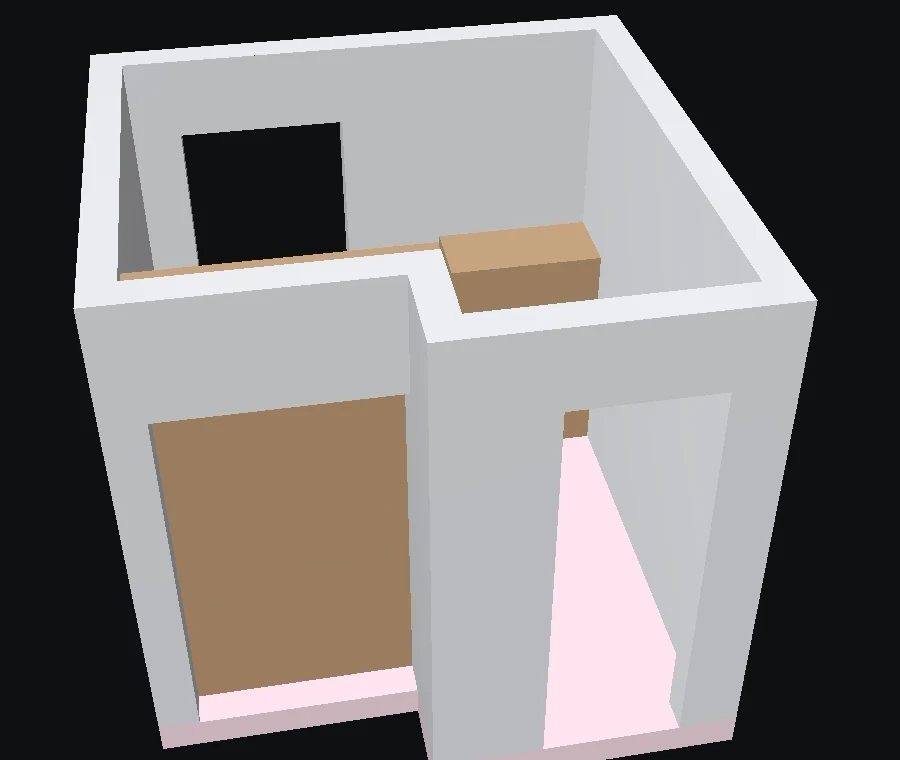
The shared page is deliberately minimal: your branding, the scan name, an interactive 3D model they can move around, and the floor plan alongside it. It does not expose your dashboard, your other scans, or any account details — the link opens exactly one scan, and nothing else in your organisation is reachable from it.
Staying in control: view counts and revoke
Sharing publicly does not mean losing track of the scan. Every share link reports a view count back to the owner, so you know the link is actually being opened. And because the link is separate from the scan itself, revoking it is one click on your side — the moment you do, the URL stops working for anyone still holding it, including a copy pasted into an old email or a stale portal listing.
Included on every plan
Scan sharing is not a higher-tier add-on — every FIMIT plan can generate a public share link, because getting a finished scan in front of the person who needs to see it should not depend on which plan you are on.
It is still the same scan
A share link does not replace the capture, it distributes it. The 3D model and 2D floor plan on the shared page come straight from the LiDAR walk-through that created the scan in FIMIT — a single iPhone or iPad Pro pass through the space, uploaded and turned into a model and plan automatically. Sharing is an extra step on that same pipeline, not a separate tool with its own upload.
| You get | Detail |
|---|---|
| A public, branded page | Your logo, org name and the scan name — no FIMIT login screen |
| 3D model + 2D floor plan | Both shown together, from the same capture |
| No account for the recipient | Opens in any browser, nothing to install or sign up for |
| View counts | See how many times the link has been opened |
| One-click revoke | Disable the link at any time — old copies stop working immediately |
| Included on every plan | Not gated to a higher tier |
Frequently asked questions
Does the person I share a scan with need a FIMIT account?
No. A share link opens a public, branded page in any browser — the recipient never sees a login screen or needs to sign up.
Can I stop sharing a scan after I have already sent the link?
Yes. Revoking a share link is one click from your dashboard and takes effect immediately — anyone still holding the old link, including a copy in an old email or listing, gets an inactive link, not the scan.
Can I see who has viewed a shared scan?
FIMIT reports how many times a share link has been opened, so you know it is actually being used. It does not identify individual visitors.
Can I put a share link in a property portal listing?
Yes, if the portal accepts an external link alongside its own photos and fields — many property portals do. Paste the share link wherever the listing allows a link or a virtual-tour field.
Is scan sharing an extra cost?
No. Generating a public share link is included on every FIMIT plan.
About the author
Salar Kiabi, Founder, FIMIT
Salar Kiabi is the founder of FIMIT, which turns a single iPhone LiDAR walk-through into an accurate, to-scale 2D floor plan and 3D model for property and facility teams. He writes about measurement accuracy, capture technique, and getting a floor area from a phone that you can actually stand behind.
Related reading
- Floor Plans for Real Estate Listings: Why Serious Buyers Expect ThemA floor plan answers the questions photos cannot, so viewings are better qualified. What makes a great one, and how to make it from an iPhone.
- Cut Site Visits with iPhone LiDAR ScanningEvery avoidable site visit costs a facility team hours. How capturing spaces once with iPhone LiDAR lets you measure remotely and quote without going back.
- How to Create a Floor Plan with Your iPhoneWalk any room with an iPhone and get an accurate, to-scale 2D floor plan and 3D model in minutes — no tape measure. Here is how iPhone LiDAR floor plans work.